Free Obsidian installer for every platform. Click your operating system below to start downloading from official Obsidian release servers.
Obsidian is a free, local-first note-taking app built around the idea of a personal knowledge graph. Unlike cloud-based tools, every note you write is stored as a plain Markdown file on your own device. There is no account sign-up, no monthly subscription for the core app, and no data ever leaves your machine by default.
The app supports bidirectional linking — you can link any note to any other note and instantly see all backlinks. A built-in graph view renders your entire knowledge base as an interactive network, making it easy to spot connections between ideas.
Download Free Now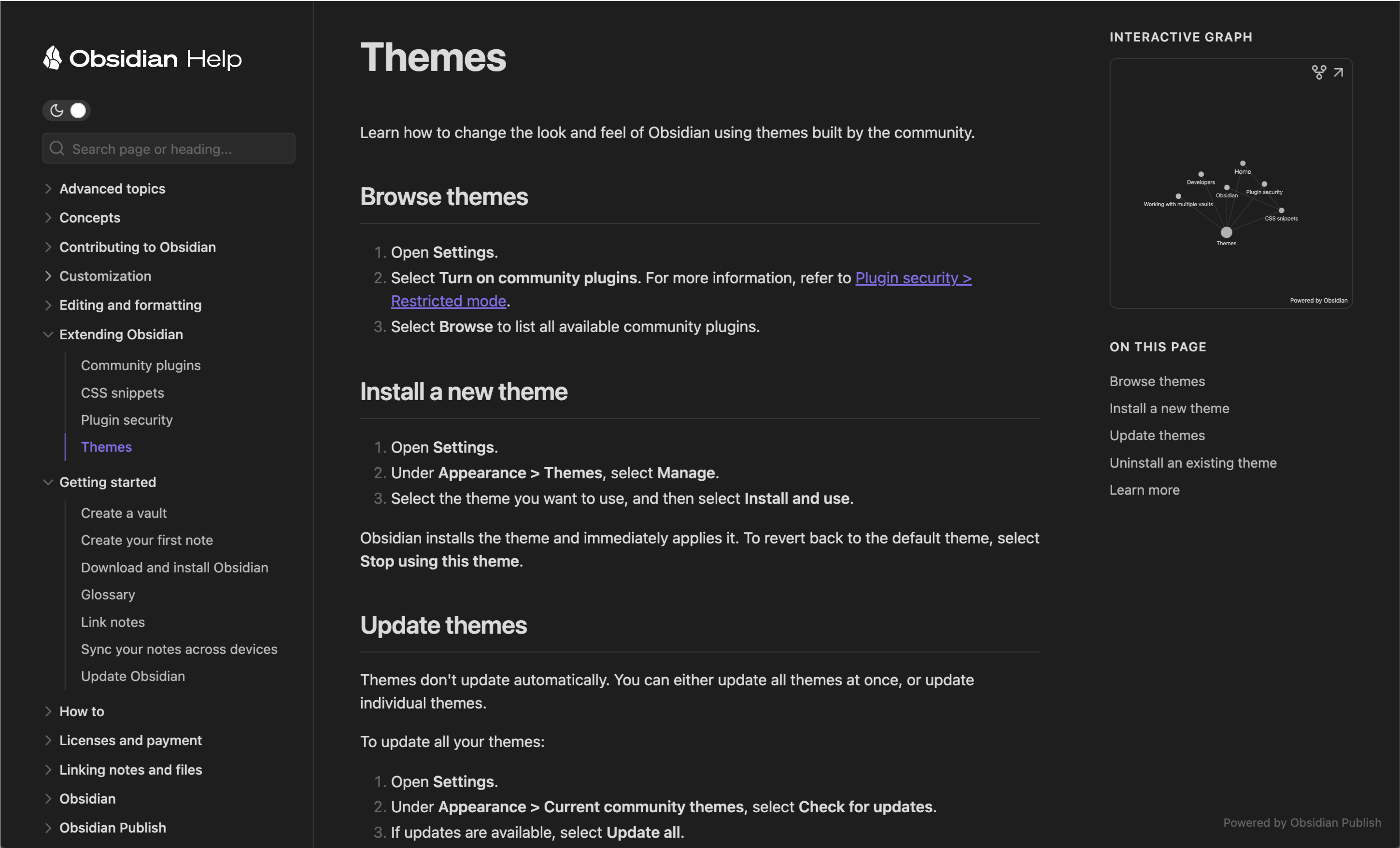
Compatible with Windows 10 and Windows 11 (64-bit). The installer requires no administrator rights.
Installer · 1.12.7 · ~90 MB
Downloads from github.com/obsidianmd/obsidian-releases
Compatible with macOS 10.14 Mojave and later. Works on both Intel and Apple Silicon (M1/M2/M3).
Disk Image (.dmg) · 1.12.7 · ~120 MB
Downloads from github.com/obsidianmd/obsidian-releases
Available as AppImage (recommended), Snap, and Flatpak. The AppImage runs on any modern Linux distribution without installation.
| Format | Best for | Download |
|---|---|---|
| AppImage | Any distro — just make executable & run | ⬇ AppImage |
| Snap | Ubuntu, Fedora & Snap-enabled distros | ⬇ .snap |
| Flatpak | Any Flatpak-supported distro via Flathub | Flathub → |
The Obsidian mobile app is free and available on both the Apple App Store and Google Play Store.
After you download Obsidian, here is what you can do with it.
Every vault is a plain folder on your file system. Create as many vaults as you need — one per project, one for personal notes, one for work. Switch between them instantly.
Obsidian indexes your entire vault locally and returns results in milliseconds, even with thousands of notes. Search by filename, content, tags, or heading.
Visualise your entire knowledge base as an interactive node graph. Filter by tags, isolate clusters, and discover connections between concepts you may have missed.
Tag any note and browse your full tag tree in the sidebar. Nested tags (e.g. #project/work/client-a) let you build a deep, flexible taxonomy without extra folders.
Open today's daily note with a single click. Use the core Calendar plugin to navigate back through your journal history and build a consistent daily writing habit.
Obsidian Canvas lets you place notes, images, and web pages on an infinite whiteboard. Connect them with arrows to map out ideas, processes, or project plans visually.
Detailed instructions for getting started on every platform after your Obsidian download.
Click the Windows button above to download Obsidian-1.12.7.exe from GitHub.
Double-click the downloaded file. Windows may show a SmartScreen prompt — click "More info" then "Run anyway".
The app opens automatically after install. A shortcut appears on your Desktop and Start Menu.
Choose "Create new vault", pick a folder on your PC, and name it. Your first note file appears instantly.
Click the macOS button and save Obsidian-1.12.7.dmg to your Downloads folder.
Double-click the .dmg file to mount it. A Finder window opens with the Obsidian icon.
Drag Obsidian.app to the Applications folder shortcut shown in the same window.
Open Obsidian from Applications. If macOS asks, go to System Settings → Privacy & Security → Open Anyway.
Click the Linux AppImage button above. The file saves as Obsidian-1.12.7.AppImage.
In terminal: chmod +x Obsidian-1.12.7.AppImage
Execute: ./Obsidian-1.12.7.AppImage — no installation required.
Right-click the AppImage and choose "Create Desktop Entry" (in supported file managers) for a launcher icon.
A thorough comparison of Obsidian against other popular note-taking applications.
| Feature | Obsidian | Notion | Roam | Logseq | Bear |
|---|---|---|---|---|---|
| Free core app | ✔ | ✔ | ✘ | ✔ | Freemium |
| Local-first storage | ✔ | ✘ | ✘ | ✔ | ✘ |
| Plain text Markdown | ✔ | ✘ | ✘ | ✔ | Partial |
| Bidirectional links | ✔ | Partial | ✔ | ✔ | ✔ |
| Graph view | ✔ | ✘ | Basic | ✔ | ✘ |
| Community plugins | 1,000+ | Limited | Few | Many | None |
| Canvas / whiteboard | ✔ | ✔ | ✘ | ✘ | ✘ |
| Linux support | ✔ | ✘ | Web only | ✔ | ✘ |
| Offline capable | ✔ | Limited | ✘ | ✔ | Limited |
| Custom CSS themes | ✔ | Limited | ✘ | ✔ | Limited |
A look at the Obsidian app across different use cases and screen layouts.


Common questions about installing and running Obsidian.
The Windows installer (Obsidian-1.12.7.exe) is approximately 90 MB. The macOS .dmg is around 120 MB. The Linux AppImage is around 100 MB. Mobile app sizes vary by platform.
Obsidian checks for updates automatically and shows a notification when one is available. You can also go to Settings → About → Check for updates inside the app. For a manual update, download the latest installer from this page and run it over your current installation.
Obsidian is completely safe. All download links on this page go directly to the official Obsidian GitHub releases repository (github.com/obsidianmd/obsidian-releases). studio-obsidian.com does not host or modify any installation files.
On Windows the installer typically installs to your user profile and does not require admin privileges. On Linux the AppImage format needs no installation whatsoever — just download, make executable, and run.
Download Obsidian-1.12.7.AppImage, then run in terminal: chmod +x Obsidian-1.12.7.AppImage followed by ./Obsidian-1.12.7.AppImage. If FUSE is not installed you may need: sudo apt install libfuse2.
Yes. Export your Notion workspace as Markdown & CSV (via Notion Settings → Export). The exported folder can be opened directly as an Obsidian vault. Most formatting transfers cleanly; some Notion-specific blocks may need manual adjustment.
A vault is any folder on your computer designated as your note collection. All Markdown files (.md) inside that folder and its subfolders become notes in Obsidian. You can have multiple vaults and open them with different configurations.
No. Obsidian is a native desktop and mobile application, not a web app. This is by design — keeping notes local ensures privacy and speed. However, the optional Obsidian Publish service lets you share specific notes publicly as a website.